Manage User Contexts
DKCloudCommand supports the configuration of multiple users, both within the same account and across customer accounts. Each of these configurations is called a context.
The only required context is the default context. The general configuration, specifically the configuration for your local diff and merge tool and the check-working-path setting, is shared across all contexts.
Note
Return of context info: Note that DKCloudCommand responses will only occur if multiple contexts have been configured AND this feature is enabled in general-config.json.
View configured contexts
Use the context-list command to view a list of contexts:
Output: context-list command
Create and configure a new context
You can create a new context using the context-switch command with a new context name:
Output and prompts: context-switch command
Current context is: default
Context does not exist. Are you sure you want to create context fourth_context? [yes/No]yes
Switching to context fourth_context ...

Enter username: <USERNAME>
Enter password: <PASSWORD>
DK Cloud Address (default https://cloud.datakitchen.io): <ENTER>
DK Cloud Port (default 443): <ENTER>
Switch to an existing context
Output: context-switch command
Current context is: default
Switching to context second_context ...
Context switch done.
Use dk user-info and dk config-list to get context details.
Delete a context
You cannot delete the default context or a context for which you are presently configured. Switch away from an existing context before deleting it.
Output and prompts: context-delete command
Current context is: default

Credential information will be lost.
Are you sure you want to delete context sample_context? [yes/No]yes
Deleting context sample_context ...

Done!
Local folder structure best practice
DKCloudCommand automatically creates a local directory structure that is built upon to support multiple contexts.
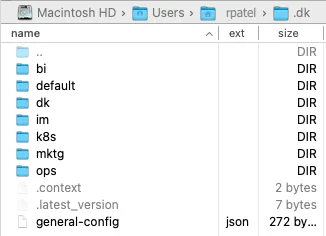
The root is ~home/.dk/ and serves as the parent directory for individual context folders. Every time a user runs the context-switch command and enters a new context name, the system creates a related folder in this location.
The system stores a user's current context in a hidden system file at the root: ~home/.dk/.context.
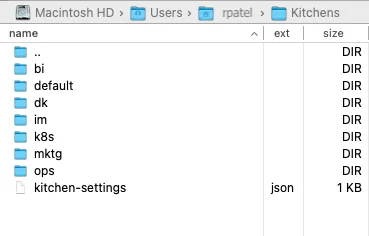
DataKitchen recommends that you create a mirror directory structure for your local kitchen data at ~home/Kitchens/<context>/<kitchen-name>/<recipes>.
This practice has some key benefits.
- Organization: a working directory structure that recreates Automation's object model gives your data a logical, reproducible organization.
- Efficiency: when merging kitchens from the command line (CLI), the process is completely automated if all kitchens for a single customer are in the same local path. The system can find the local copy of the target kitchen and will synchronize it with the original remote version. The system will also be able to flag changes that are not merged—those edits not previously pushed by a recipe-update command.
- Fail-safes: the system will also be able to flag changes that are not merged—those edits not previously pushed by a recipe-update command.
- Troubleshooting: the standard structure makes it easy to find local folders and files that may require investigation, copying, and comparison to identify issues.
| CLI context structure example | Local data structure example | |
|---|---|---|
 |
 |