Notifications
Set up notifications to stay informed about data quality events without checking the UI. TestGen can alert you after profiling runs, test runs, monitor anomalies, and quality score changes.
Notifications can reach you by:
- Email — one or more addresses.
- Slack — posted to a channel through an incoming webhook.
- Microsoft Teams — posted to a channel through the Workflows app.
- Any other HTTPS endpoint — sent as a JSON request, for a service that forwards alerts, gates a pipeline, or creates Jira work items.
Prerequisites
An SMTP email server must be configured to deliver email notifications. See Configure Email Server. Webhook destinations do not require SMTP.
Set up a notification destination
A destination is a named delivery target that any notification rule in a project can use. Changing a destination — adding a recipient, or rotating a webhook URL — takes effect for every rule that uses it.
- Select Project Settings from the sidebar.
- In the Notification Destinations section, click Add Destination.
- Enter a Destination name, then select a Destination type:
- Email — enter one or more email addresses.
- Webhook — select a webhook type, then enter the HTTPS URL it gave you.
- Slack — create an incoming webhook on a Slack app and copy its webhook URL. The URL posts to the one channel you select. See Sending messages using incoming webhooks.
- Microsoft Teams — in the channel you want alerts in, open the Workflows app, use the Send webhook alerts to a channel template, and copy the URL it generates. See Send messages in Teams using incoming webhooks.
- Generic — any HTTPS endpoint that accepts a JSON request. Optionally set an authorization header to send with every request. To create Jira work items, see Create Jira work items.
- Optional. For a webhook, click Send Test to confirm that the endpoint accepts a delivery. The test uses the values currently in the form, so you can check a URL before saving it. A successful test reports the response status; a failed test reports the reason.
- Click Save.
Warning
Deleting a destination also deletes every notification rule that uses it. This action cannot be undone. Before you confirm, the dialog reports how many rules will be deleted.
Allow an internal webhook host
TestGen refuses webhook deliveries to private and reserved network addresses. To deliver to an internal endpoint, such as a self-hosted chat server, add its host or network to the TG_WEBHOOK_ALLOWED_HOSTS environment variable as a comma-separated list of hostnames or CIDR ranges.
See Set Environment Variables for how to set the variable and restart the application.
Create Jira work items
A Jira Cloud automation rule can receive notifications through its Incoming webhook trigger and create a work item from each one. One automation rule serves every notification rule that uses the destination.
-
In Jira, create an automation rule with these components. See Configure the incoming webhook trigger.
- An Incoming webhook trigger.
- A smart value condition that checks whether
{{webhookData.event}}does not equaltest. Send Test in TestGen sendstest, and the condition keeps it from creating a work item. -
A Create work item action. Set Summary to
{{webhookData.summary}}, and set Description to the following template. The description links to the results in TestGen, summarizes the run or the scorecard, and lists the failed tests, hygiene issues, anomalies, or score changes that the notification carries.View in TestGen: {{webhookData.url}} {{#if(equals(webhookData.event, "test_run"))}} Project: {{webhookData.project.name}} Test suite: {{webhookData.test_suite}} Table group: {{webhookData.table_group}} Results: {{webhookData.counts.failed}} failed, {{webhookData.counts.warning}} warnings, {{webhookData.counts.error}} errors out of {{webhookData.counts.total}} tests {{#webhookData.failing_tests}} * {{status}}: {{test_type}} on {{table}} {{columns}} - {{message}} {{/}} {{/}} {{#if(equals(webhookData.event, "profiling_run"))}} Project: {{webhookData.project.name}} Table group: {{webhookData.table_group}} Profiled: {{webhookData.table_count}} tables, {{webhookData.column_count}} columns Hygiene issues: {{webhookData.issue_count}} {{#webhookData.hygiene_issues}} * {{likelihood}}: {{issue}} on {{table}} {{columns}} {{/}} {{/}} {{#if(equals(webhookData.event, "monitor_run"))}} Project: {{webhookData.project.name}} Table group: {{webhookData.table_group}} Anomalies: {{webhookData.anomaly_count}} {{#webhookData.anomalies}} * {{monitor_type}} on {{table}} - {{message}} {{/}} {{/}} {{#if(equals(webhookData.event, "score_drop"))}} Project: {{webhookData.project}} Scorecard: {{webhookData.scorecard}} {{#webhookData.categories}} * {{label}}: {{previous}} to {{current}} (threshold {{threshold}}) {{/}} {{/}}To customize the summary or the description, use the fields in the webhook payload.
-
Click Save without enabling. The trigger has no secret yet, so Save and enable fails with
Invalid incoming webhook trigger. - Click the Incoming webhook trigger. Under Work item criteria, select No work items from the webhook. Generate a secret, and copy the webhook URL and the secret.
- Turn on the automation rule.
- In TestGen, add a Generic webhook destination with the webhook URL. Set Authorization header name to
X-Automation-Webhook-Tokenand Authorization header value to the secret. - Click Send Test. In Jira, the automation rule's audit log shows a run that stopped at the condition. A run that is missing from the audit log means a wrong URL or secret.
- Add a notification rule that uses the destination, and trigger it. For example, add a test run notification rule with the Always trigger and run the test suite. The run creates a work item.
Each notification creates one work item, so a test suite that fails on every run opens a new work item on every run. To avoid duplicates, use the On new test failures and warnings trigger, or have the automation rule look up an open work item and comment on it instead.
Set up test run notifications
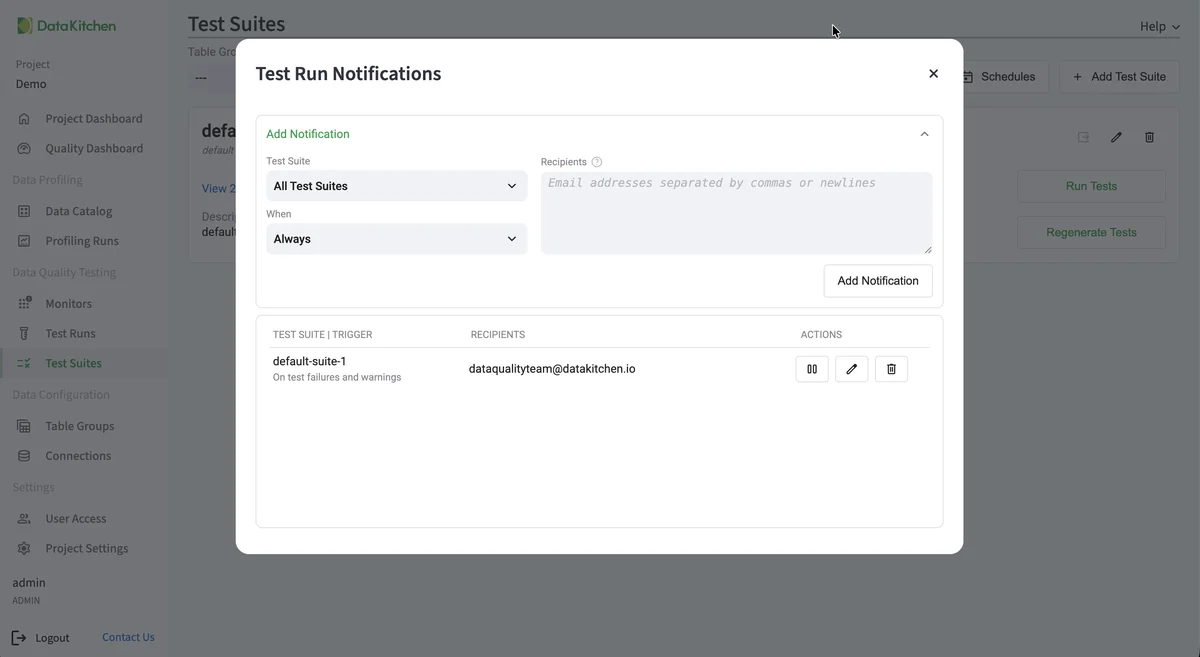
Navigate to the Test Suites page and open the notification dialog. Test Run notifications are sent after a test suite completes. Each rule can be scoped to a specific test suite or applied project-wide.
Available triggers:
- Always — After every test run.
- On test failures — When the run has failures or errors.
- On test failures and warnings — When the run has failures, errors, or warnings.
- On new test failures and warnings — When the run has failures, errors, or warnings that the previous run did not.
Set up profiling run notifications
Navigate to the Table Groups page and open the notification dialog. Profiling Run notifications are sent after a profiling run completes. Each rule can be scoped to a specific table group or applied project-wide.
Available triggers:
- Always — After every profiling run.
- On new hygiene issues — When the run detects hygiene issues that the previous run did not.
Set up monitor notifications
Navigate to the Monitors page and open the notification dialog. Monitor Run notifications are sent when anomalies are detected. Each rule is scoped to a table group and can optionally be filtered to a specific table.
The only trigger is On Anomalies — notifications are sent when one or more monitors detect an anomaly.
Set up score drop notifications
Navigate to the Score Details page for a scorecard and click the (notifications icon). Score Drop notifications are sent when a quality score falls below a threshold you configure.
Set separate thresholds for the Total Score and CDE Score (0-100). A notification is sent only when a score decreases and the new score is below the threshold. A score that holds steady below its threshold sends nothing further, but a score that keeps falling sends a notification each time it drops.
Manage notification rules
Each notification rule can be individually paused or resumed without deleting it. The notification dialog flags rules that would deliver the same notification more than once — two rules with the same trigger, scope, and delivery target.
Reference
Webhook payload
A Generic webhook destination receives each notification as a JSON object. A field path such as data.counts.failed names a nested field. In a Jira smart value, leave out data. and prefix the rest of the path with webhookData.: data.counts.failed is {{webhookData.counts.failed}}.
Every notification has these fields.
| Field | Content |
|---|---|
event |
test_run, profiling_run, monitor_run, or score_drop. Send Test sends test. |
summary |
The subject line of the matching email notification |
url |
Link to the results in TestGen |
project.name |
Name of the TestGen project |
occurred_at |
Time the notification was sent, in UTC |
The fields under data depend on the event. Each list holds up to 20 items. The link in url opens the full results.
Test run
| Field | Content |
|---|---|
data.test_suite |
Name of the test suite |
data.table_group |
Name of the table group |
data.status |
Status of the run, such as Completed |
data.counts.total |
Number of tests in the run |
data.counts.passed, data.counts.failed, data.counts.warning, data.counts.error |
Number of tests with each result |
data.failing_tests |
List of tests that failed, warned, or ended with an error. Each item has status, test_type, table, columns, message, and is_new, which is true when the previous run did not have the result. |
Profiling run
| Field | Content |
|---|---|
data.table_group |
Name of the table group |
data.status |
Status of the run, such as Completed |
data.table_count, data.column_count |
Number of tables and columns profiled |
data.issue_count |
Number of hygiene issues |
data.hygiene_issues |
List of hygiene issues. Each item has issue, likelihood (the risk level, for PII issues), table, columns, and is_new, which is true when the previous run did not detect the issue. |
Monitor run
| Field | Content |
|---|---|
data.table_group |
Name of the table group |
data.anomaly_count |
Number of anomalies |
data.anomalies |
List of anomalies. Each item has monitor_type, table, and message. |
Score drop
| Field | Content |
|---|---|
data.scorecard |
Name of the scorecard |
data.categories |
List of scores. Each item has label, previous, current, and threshold, as values from 0 to 100. |